A project keeps everything about one model: which sliced files it uses, where each piece goes, the pattern and its values, its placement, colours, depth and print settings. It’s saved as a .tessafab.json file, small enough to keep beside your model, and it’s also what the command line applies.
The file menu
Click the project’s name at the top left to open it.
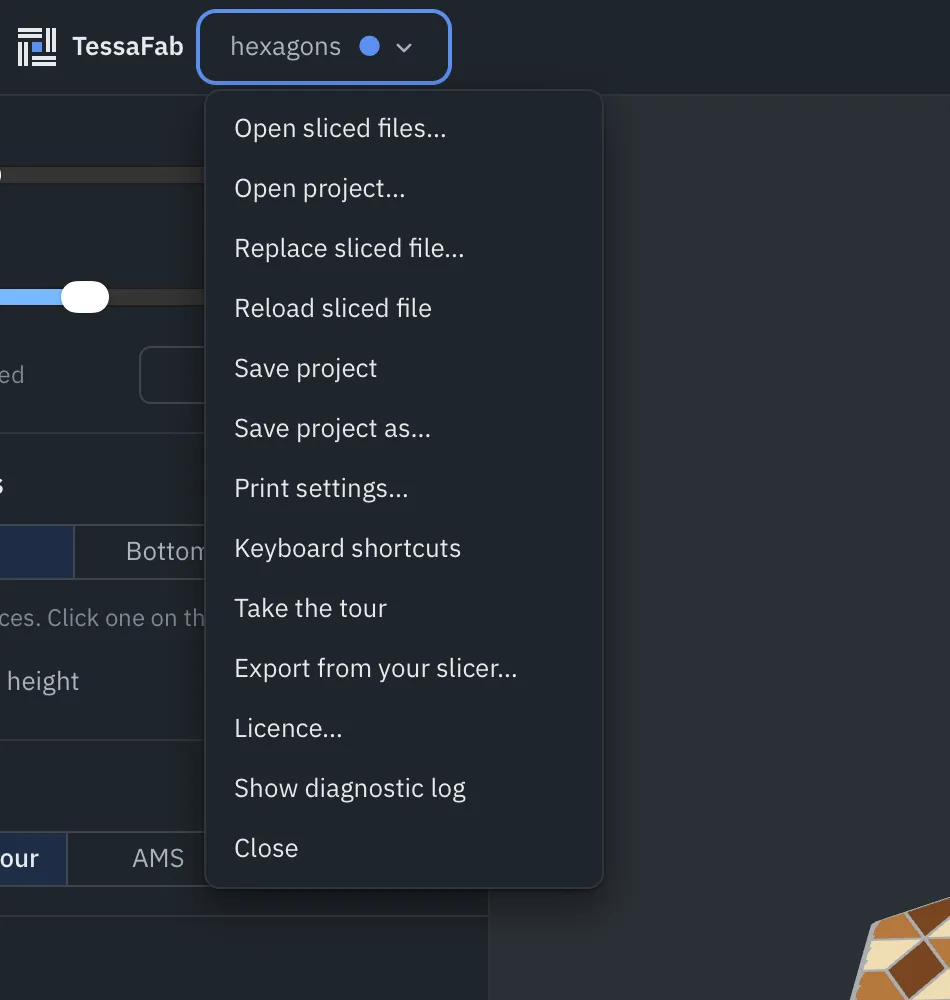
| Item | What it does |
|---|---|
| Open sliced files… | Start a new project from sliced files (⌘O). |
| Open project… | Open a saved .tessafab.json. |
| Replace sliced file… | Swap in re-exported files under this project. |
| Reload sliced file | Read the same file again, after re-exporting it in place. |
| Save project / Save project as… | Save (⌘S, ⇧⌘S). A dot by the name marks a project not saved to a file yet. |
| Print settings… | Speeds, retraction and rims for the patterned lines. See Print settings. |
| Keyboard shortcuts, Take the tour, Export from your slicer… | Help. |
| Licence… | Your edition, the trial and licence key. See Licences. |
| Show diagnostic log | What the engine did, block by block. Useful when something looks wrong. |
Once a project has a file, TessaFab saves every change to it by itself, a moment after you make it. Before then, it keeps a recovery copy.
Every change can be undone: ⌘Z and ⇧⌘Z (Ctrl+Z and Ctrl+Y on Windows and Linux), or the arrows at the top.
Changing the model: swap the slice
When you change the model or its slicer settings, slice and export again, then put the new file under the project. Everything carries over: the assembly, pattern, colours and settings.
- Replace sliced file… asks for the re-exported file for each one in the project.
- Reload sliced file reads it again if you exported over the same file.
- Dropping a sliced file onto an open project asks whether to Swap into this project or Start a new project.
TessaFab finds each placed piece again by its shape (re-linking), even if it moved on the bed, and surfaces you left as sliced are found again by height.
When a piece needs attention
If a piece can’t be found after re-slicing, or identical pieces all moved so TessaFab can’t tell which is which, the pieces list in Assemble marks it Needs attention: “not found after re-slicing” or “which copy is it?”. Click it and place it again by hand.